Web Scraping with Web Scraper
DATA 351: Data Management with SQL
April 8, 2026
Why this tool?
You already know SQL is for data you control. Much of the world’s data still lives in HTML pages. For structured extraction at human scale (assignments, prototypes, one-off exports), a point-and-click scraper inside the browser keeps you close to the page and avoids writing a full crawler on day one.
This lecture uses Web Scraper (Chromium extension from the Chrome Web Store). It is not the only option, but it matches our goals: sitemap, selector tree, preview, CSV export.

Open Developer Tools and the Web Scraper tab
Web Scraper lives inside Developer Tools, not only as a toolbar icon.
Shortcuts:
| Platform | Open Developer Tools |
|---|---|
| Windows / Linux | Ctrl+Shift+I or F12 |
| macOS | Cmd+Opt+I |
Then open the Web Scraper tab inside the tools panel. Open Web Scraper includes a figure for Chrome 3.
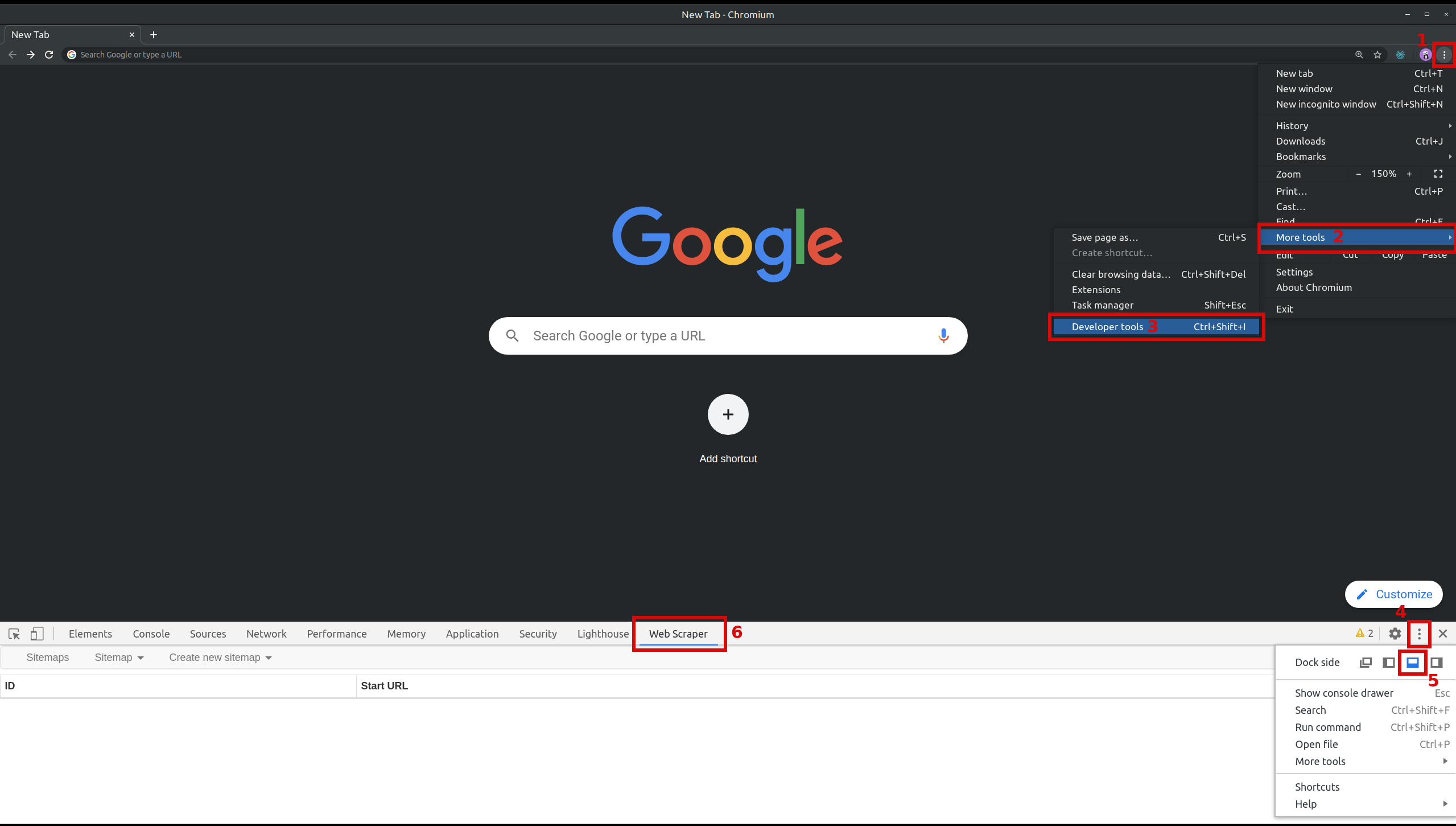
Web Scraper tab in Chrome Developer Tools (documentation figure).
Start URL
A sitemap is your recipe for one scrape job. The first setting is the start URL: the page where crawling begins. You can add multiple start URLs (for example, several search queries) using the + control next to the URL field. After creation, start URLs also appear under Edit metadata in the sitemap menu 1.

Sitemap editor: start URL field and + to add more start URLs (documentation figure).
Selector tree and order
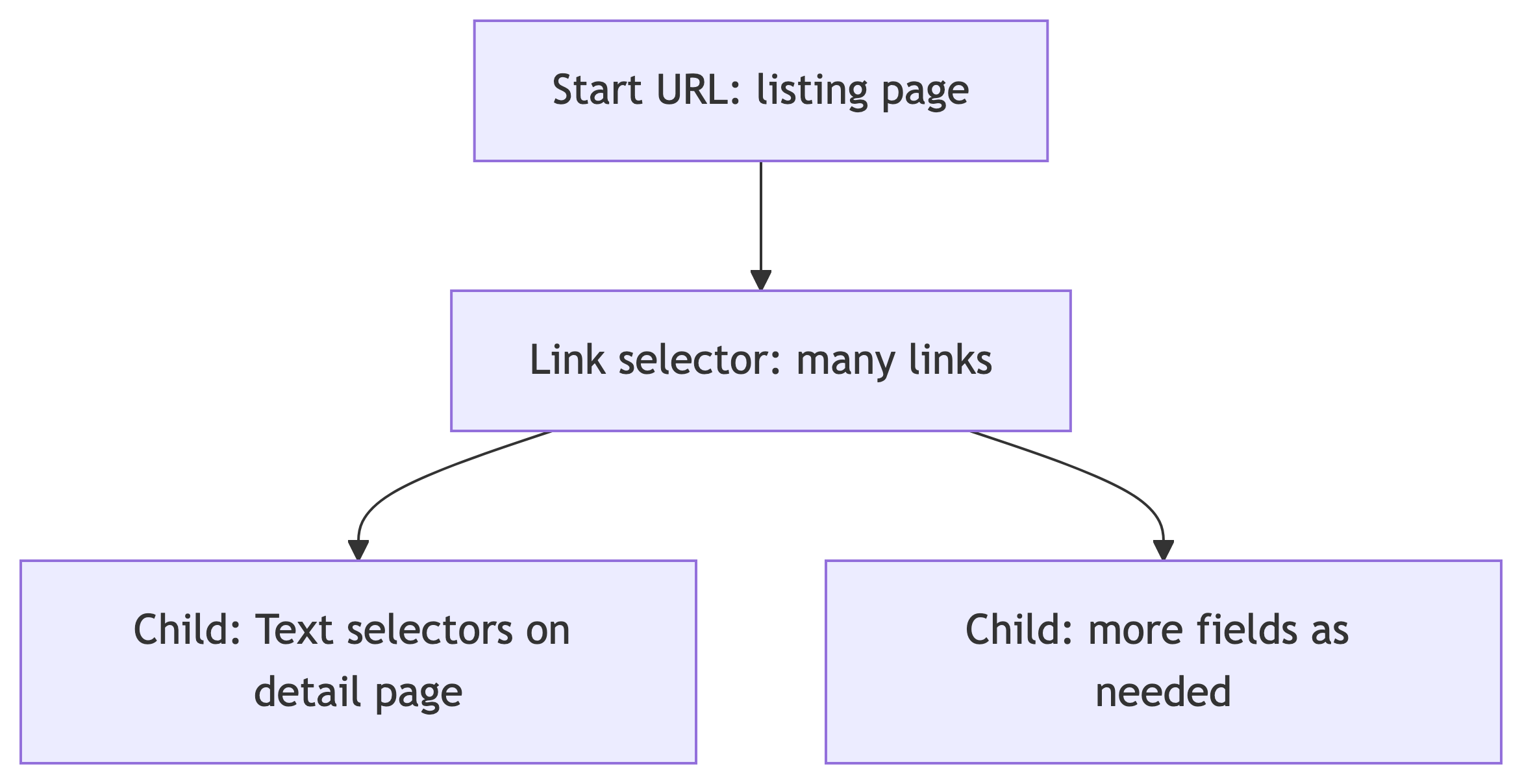
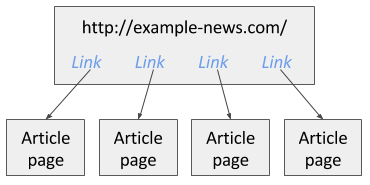
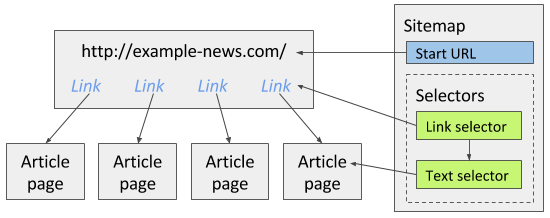
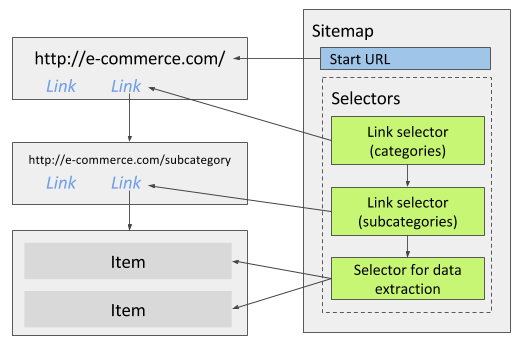
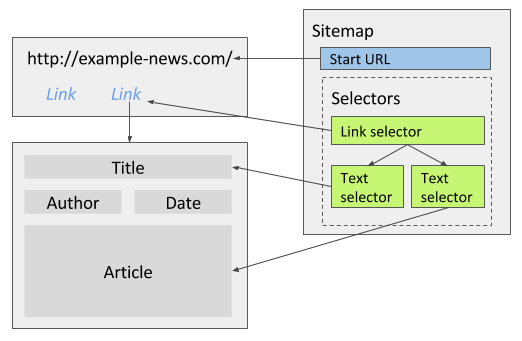
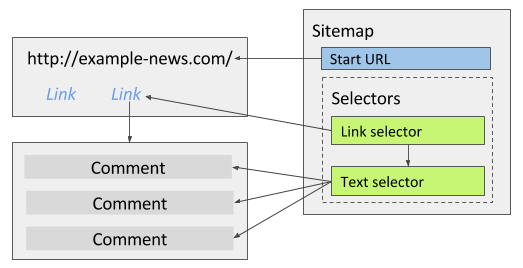
Selectors are organized in a tree. The extension runs them in tree order: parent selectors run first, then children on the pages those parents open 1.
Classic pattern from the documentation:
- Link selector on a listing page: collect many links (for example, every article link)
- Child Text selector on each article page: pull the fields you need from that page
Use Element preview and Data preview when you build each selector so you know the CSS selection matches real nodes.
Core selector types to read next
The docs recommend being comfortable with at least Link selector and Text selector 4, 5. Link selectors follow href values and pass child selectors to the destination page. If clicking a result does not change the URL (heavy AJAX), read Pagination selector instead of forcing a Link selector 4.
Scrape panel
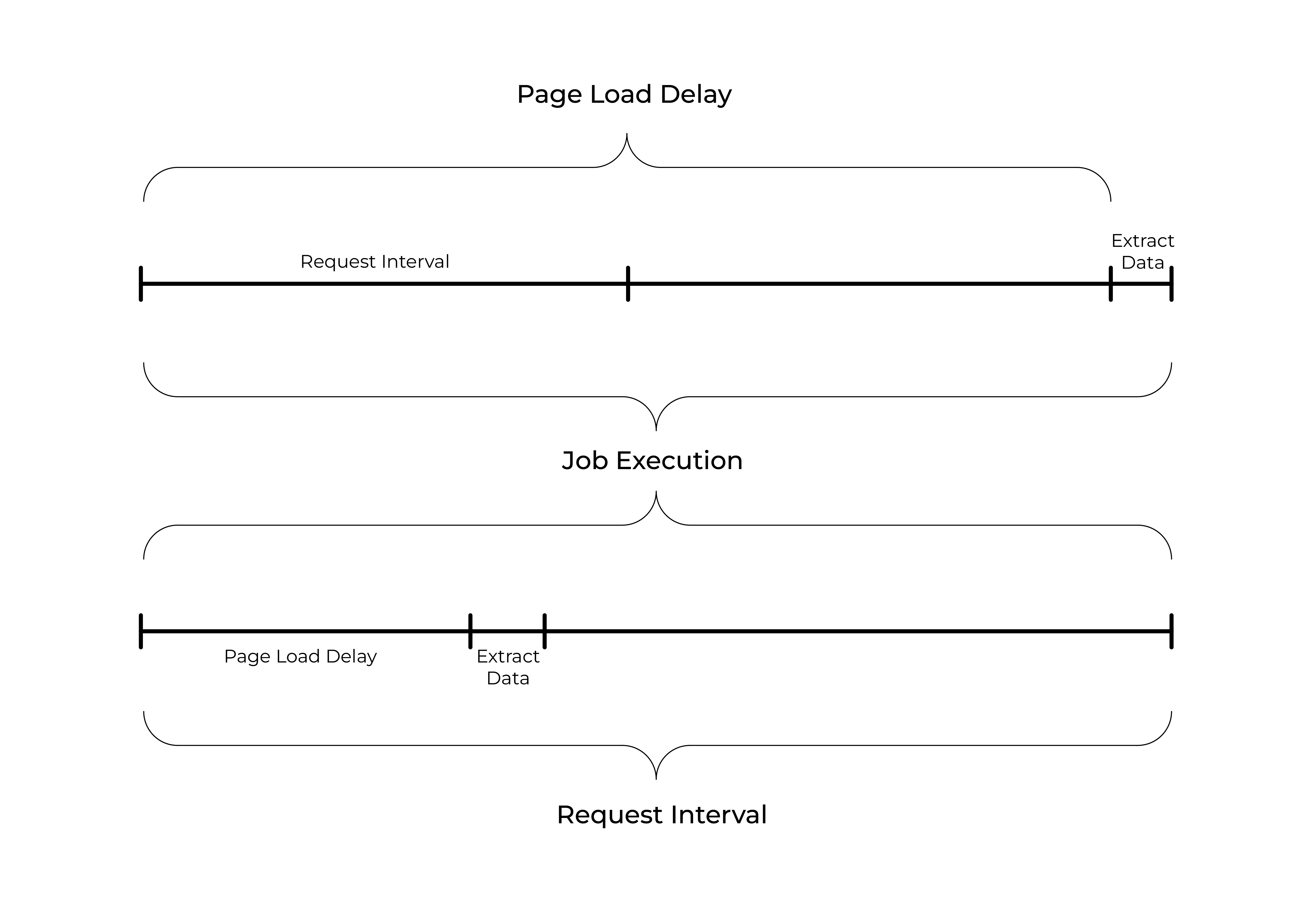
When the sitemap is ready, open the Scrape panel and start the job. A popup window loads pages and extracts rows. When it finishes, the popup closes and you get a completion notice 1.

Two knobs matter for fragile sites:
- Request interval: minimum time between HTTP requests (be polite; reduces load and bans)
- Page load delay: wait after load before running selectors (helps with late-rendered content)
Suggested sitemap (recommended: listing plus detail statistics)
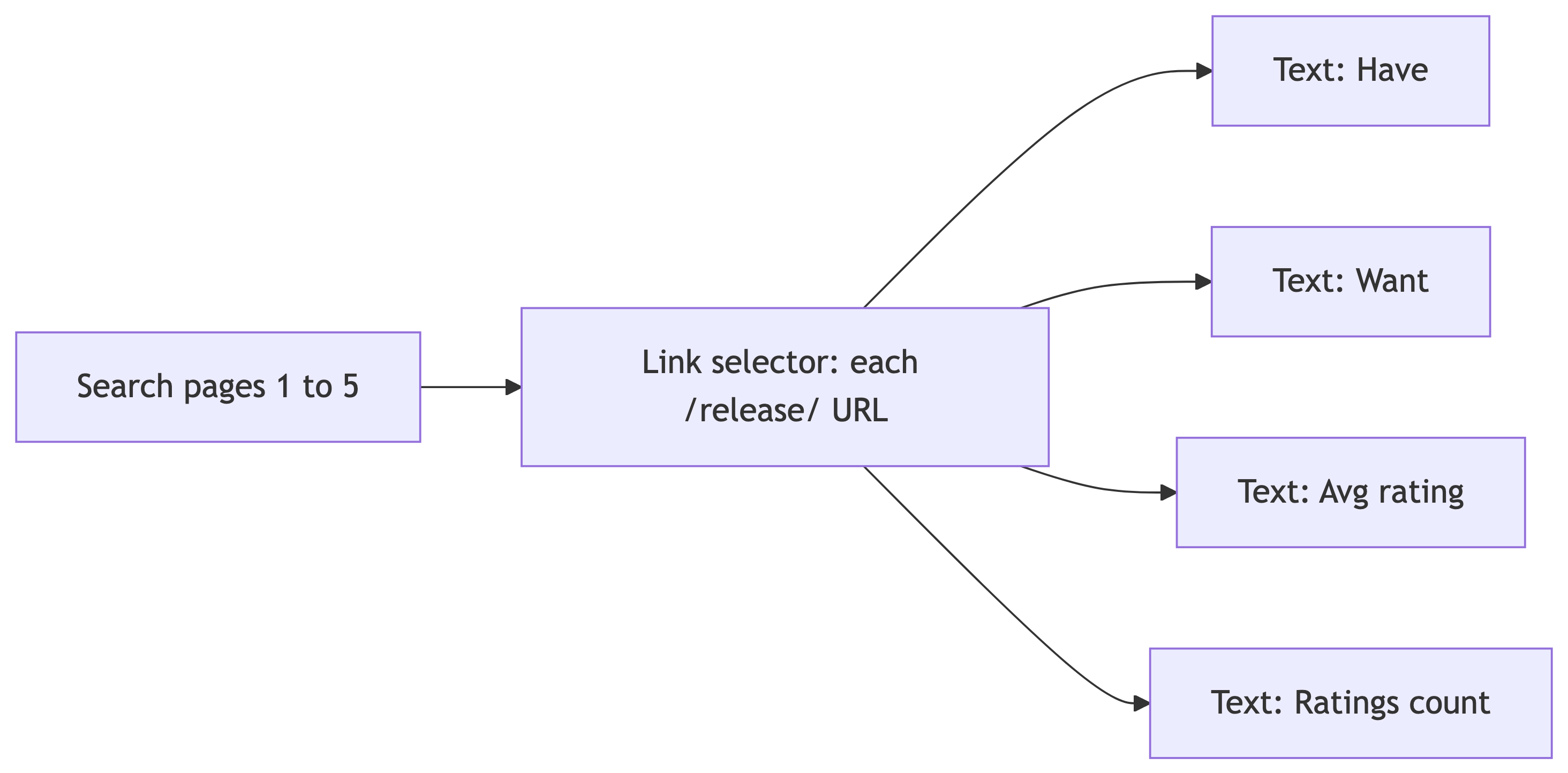
Primary path for class (search, then each release page):
- Start URL with
page=[1-5]as above (or five explicitpage=URLs). - Link selector (multiple enabled) whose CSS matches the anchor for each search result that points to a
/release/URL. This opens the detail page for each album. Name it clearly (for examplerelease_link). - As children of that Link selector, add Text selectors that run on the release page, not on the search grid. Aim for at least:
- One statistic for Have (community copies owned)
- One for Want (community want list)
- Average rating and rating count, if shown, or substitute other numeric fields you see in the page chrome (for example Last sold or Lowest price) if the layout differs that day
- Optional sibling Text selectors under the same Link (still on the detail page) for title or catalog number if you want columns that only appear on the detail view.
Optional warm-up (listing only): before you add the Link selector, you can add Text selectors on the search page scoped to each card to capture title and artist from the snippet. Those columns are redundant with the detail page for some fields, but they help verify selectors before you crawl deeper.
Tips:
- Detail URLs look like
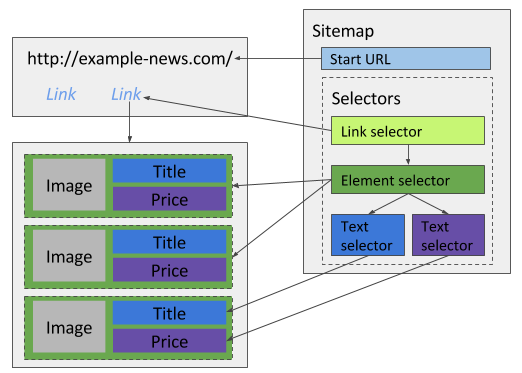
https://www.discogs.com/release/.... Avoid confusing them with master or artist links if multiple anchors appear in the same card; restrict the Link selector with a CSS filter or parent scope so you only enqueue releases. - If a statistic is split across elements (label plus number), try a parent Element on the stat block, then a Text child, or one Text with a tighter selector. Re-check after Data preview.
- If result links behave like in-page loading without a stable URL, switch to Pagination or adjust link type per Link selector 4.