Week 5: Introduction to Using Git
DATA 510: Data Science Capstone
Abstract
Week 5 companion session: Git for DS3 capstone repos. Deliverable formats (Quarto encouraged, PDF milestones always accepted), solo and team workflows, install on macOS and Windows, clone, commit, push, collaborating on shared files, merges, a brief intro to branches and pull requests, and a hands-on exercise: render the write-up skeleton to PDF, push to GitHub, and submit on Canvas.
Learning Objectives
Today’s Objectives
What You Will Leave With
By the end of this session, you will be able to:
- Explain why Git is the audit trail for capstone deliverables and weekly DS3 work.
- Install and verify Git on macOS or Windows.
- Clone your project repo, commit changes, and push to GitHub.
- Choose a sane solo or team workflow for milestone files in
deliverables/. - Describe what merges can and cannot do (text vs PDF), and when branches or pull requests help teams.
- Render the Week 5 write-up skeleton to PDF, commit and push to your repo, and upload the PDF to Canvas.
Before We Touch Git: Deliverable Formats
Encouraged: Quarto (.qmd) for write-ups, with rendered HTML/PDF committed in deliverables/ (see the Block 1 lecture today).
Also permitted: Google Docs, Microsoft Word, LaTeX, or any editor that exports PDF. Drop the PDF (and optional source) in the correct milestone folder:
deliverables/M1-proposal/
deliverables/M2-data-summary/
deliverables/M3-poster-draft/
deliverables/M4-writeup-draft/
deliverables/M5-final/
Git still tracks whatever you commit. I grade the milestone artifact, not your toolchain religion.
Part 1: Why Git for This Course
Git for the Capstone
What Git Gives You
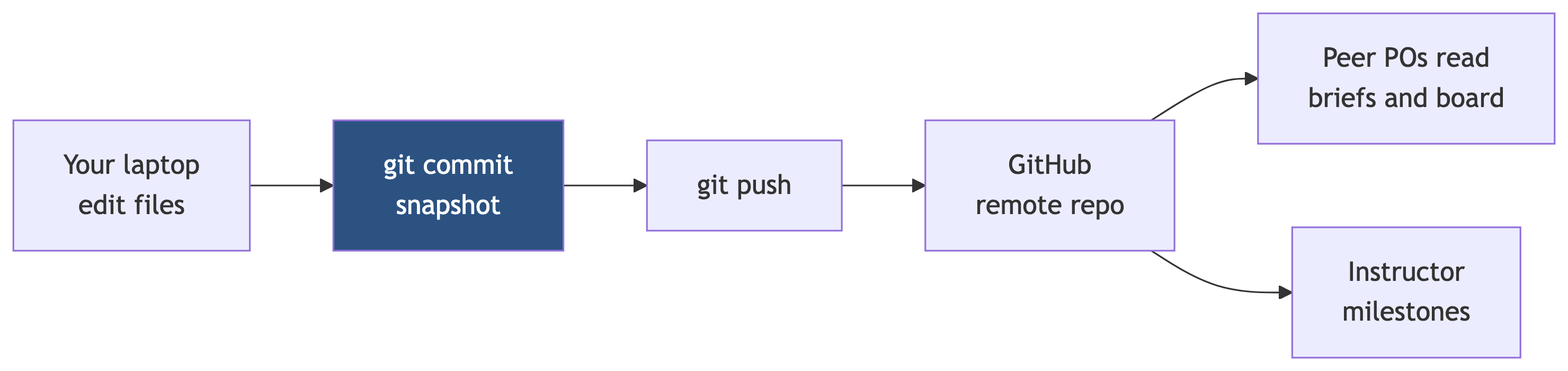
Your DS3 repo is not just file storage. Git is a time machine and evidence log:
- Peer POs and I can see what changed between Iteration Reviews.
- You can recover last Tuesday’s notebook when tonight’s refactor breaks everything.
- Team members can work in parallel without emailing
final_v2_REAL.pdf.
Course weight: Git workflow is part of Project process and practices (5%) on the syllabus. Commit quality matters weekly, especially in the last five weeks.
GitHub vs Git
| Term | What it is |
|---|---|
| Git | Version control on your machine (commits, history, merges) |
| GitHub | Hosting + collaboration (remote repo, access control, pull requests) |
You run Git locally. You push to GitHub so collaborators, peer POs, and I can read your repo.
Where Git Fits in DS3
Charter, backlog, code, notebooks, and deliverables/ all live in one repo. Commit often so the story is visible.
Part 2: Solo Workflow
Solo Git Workflow
Solo: One Person, One Repo
You are the only author. Workflow is linear:
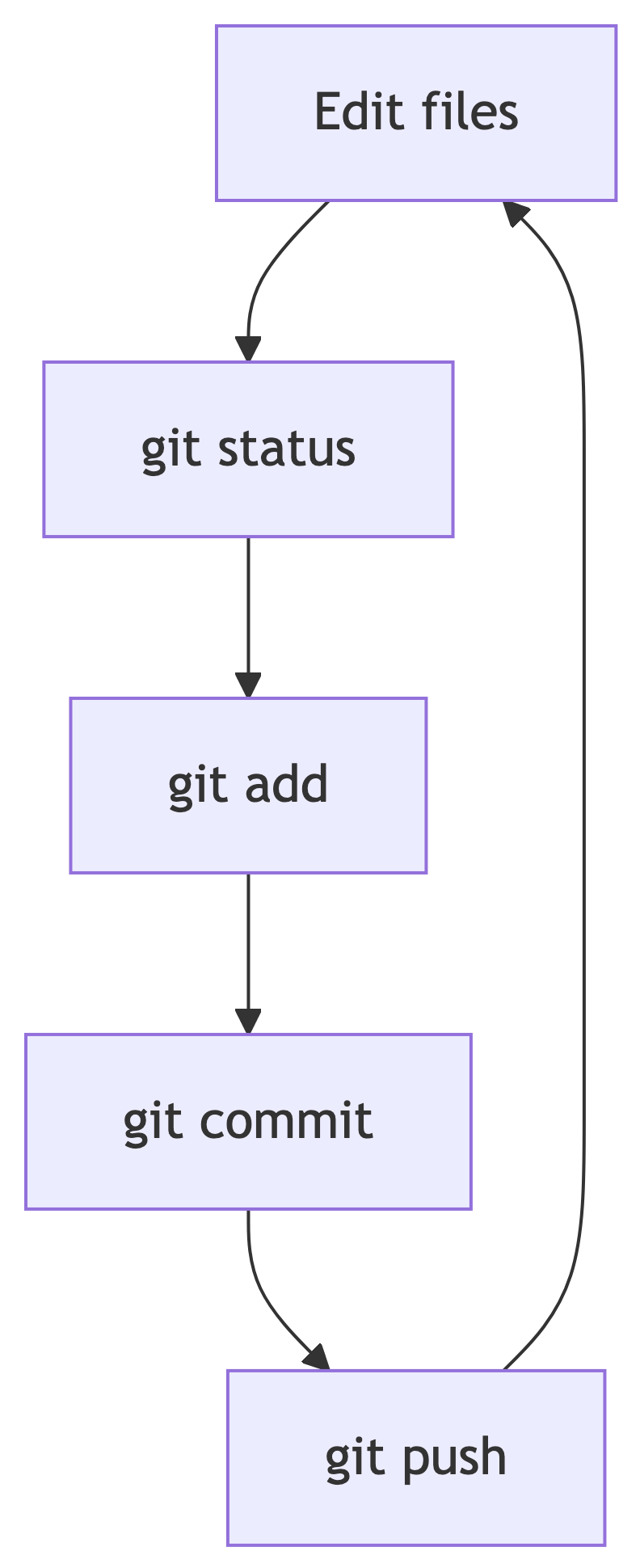
Rule: If it took more than 30 minutes and you might need it back, commit. Small commits beat heroic Sunday dumps.
Solo: What to Commit Each Week
Minimum rhythm I expect:
README.mdIteration Review before class- Progress on
src/,notebooks/, ordata/processed/as appropriate - Milestone PDFs (and
.qmdsource if you use Quarto) underdeliverables/ CHARTER.md/BACKLOG.mdupdates when they change
Do not commit: secrets, huge raw data (check .gitignore), .quarto/ cache, personal notes outside the repo structure.
Solo: Typical Session
Write commit messages a peer could understand in one line. fixed stuff is not a message.
Part 3: Team Workflow
Team Git Workflow
Teams of 2 or 3: Same Repo, Shared History
One GitHub repo per project. Everyone clones the same remote. You coordinate so two people do not silently overwrite each other’s work on main.

Before you edit: git pull. After you finish a logical chunk: git add, git commit, git push.
Splitting Work Without Collisions
| Strategy | When to use |
|---|---|
| Different files | Teo owns src/ingest/, Ben owns notebooks/03_viz.ipynb |
| Quarto includes | One writeup.qmd; each person edits _sections/methods.qmd, _sections/results.qmd |
| Different milestone folders | One person leads M2 data doc, another M3 poster (still review together) |
Take turns on main |
Pull, edit, push quickly; communicate in #standup |
If two people edit the same line of the same file without pulling, Git will ask you to merge.
Quarto Teams: Prefer Includes
From the Quarto lecture: split large write-ups with include shortcodes (each teammate owns a section file):
{{< include _sections/methods.qmd >}}
Parent writeup.qmd stays stable; merges happen in smaller files. Fewer conflicts than one 3,000-line document.
Word / Google Docs Teams
If you write in Word or export from Google Docs:
- One person owns integration each week (downloads PDF, places in
deliverables/, commits). - Do not commit
.docxwith the same filename from two laptops without pulling first. - PDF is the submission artifact; source docs can live in Drive if your team prefers, but the repo PDF must be current for graders.
Part 4: Install Git
Install Git
macOS Installation
Option A (recommended): Install Xcode Command Line Tools (includes Git):
Option B: Install Homebrew then:
Verify:
Windows Installation
- Download Git for Windows from git-scm.com/download/win
- Run the installer (defaults are fine for this course; Git Bash and Git from the command line are useful)
- Open Git Bash or PowerShell:
Optional: GitHub Desktop for a GUI. I still want you comfortable with commit / push in the terminal for README reproducibility.
First-Time Git Identity
Set once per machine (use your Willamette email):
VS Code Integration
Install the Git built-in features (and GitHub Pull Requests extension if you use PRs). Source Control panel shows changed files; integrated terminal runs the same commands below.
Part 5: Clone, Commit, Push
Git Essentials
Clone Your Project Repo
After you create a repo from the DS3 template on GitHub:
Replace the URL with your repo (HTTPS or SSH if you have keys set up). Open the folder in VS Code: File > Open Folder.
Clone once. After that, use git pull and git push, not clone again.
Daily Cycle (Diagram)
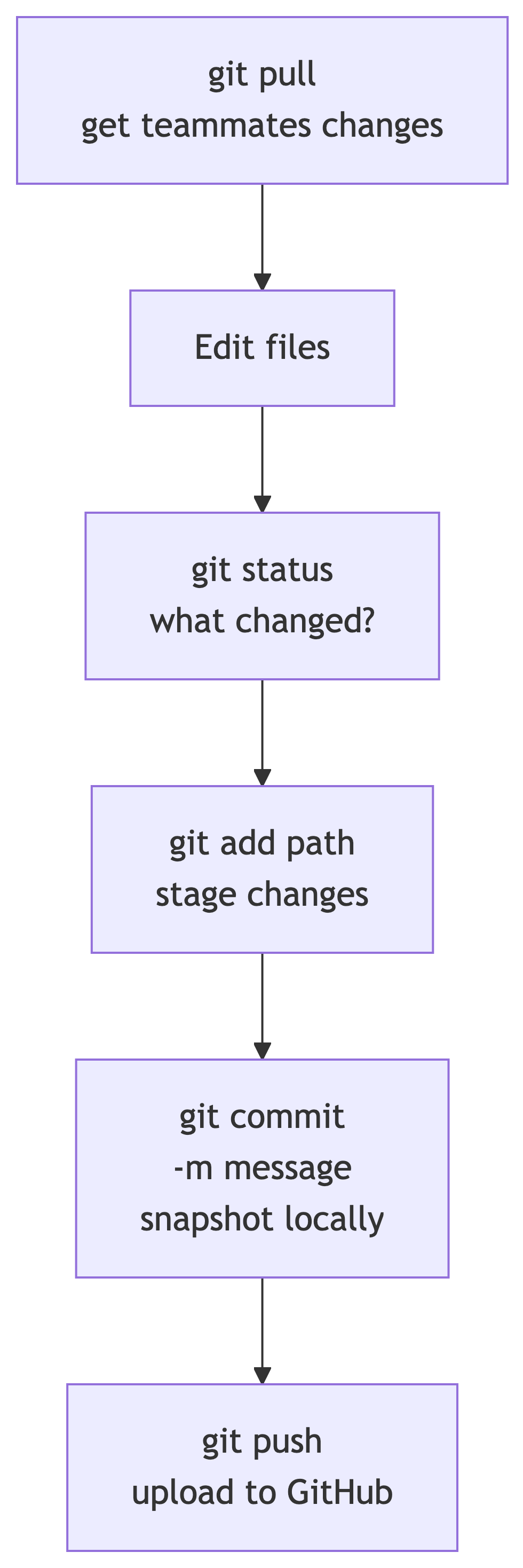
Commands You Need Tonight
| Command | Purpose |
|---|---|
git status |
See modified and untracked files |
git add <file> |
Stage a file for the next commit |
git add . |
Stage all changes (use carefully) |
git commit -m "message" |
Save a snapshot locally |
git push |
Send commits to GitHub |
git pull |
Download and merge remote changes |
git log --oneline -5 |
Recent history (sanity check) |
Commit Messages (Capstone Style)
Good:
M1: add proposal PDF and charter alignment noteIngest: AQS pull script and raw snapshot 2026-06-08README: week 5 iteration review
Weak:
updatesasdffixed merge
Part 6: Merges and Limits
Merges and Collaboration
When Git Says “Merge Conflict”
If you and a teammate edit the same lines in a text file (.qmd, .py, .md, .R), the second person to push may need to merge:
git pull- Git marks conflicts in the file with
<<<<<<<,=======,>>>>>>> - Edit the file to the correct combined version
git addthe resolved filegit commit(merge commit)git push
VS Code has a merge editor that color-codes choices. Ask for help the first time; it is a rite of passage.
Binary Files: PDFs Do Not Merge
PDF, PNG, .docx, and most binaries cannot be merged line-by-line. Git can store them, but if two people commit different versions of proposal.pdf, Git picks one history or forces you to choose a file, not blend contents.
Team practice for PDF milestones:
- One person commits the canonical PDF per milestone submission, or
- Use clear filenames with dates (
proposal-draft-2026-06-08.pdf) until you agree on final, or - Work in text source (Quarto, LaTeX) where merges work, then render PDF once
Merge vs Rebase (One Slide)
Merge: Preserves branching history; creates a merge commit. Default and fine for this course.
Rebase: Rewrites history to look linear. Advanced; optional for solo polish, avoid on shared main unless your team knows what they are doing.
You do not need rebase to pass DATA 510. You need pull, resolve, push.
Part 7: Branches and Pull Requests (Advanced)
Branches and PRs
Working on Branches (Teams)
For parallel feature work without blocking main:
Open a Pull Request (PR) on GitHub: teammate reviews, then merge into main. Everyone git pull on main afterward.
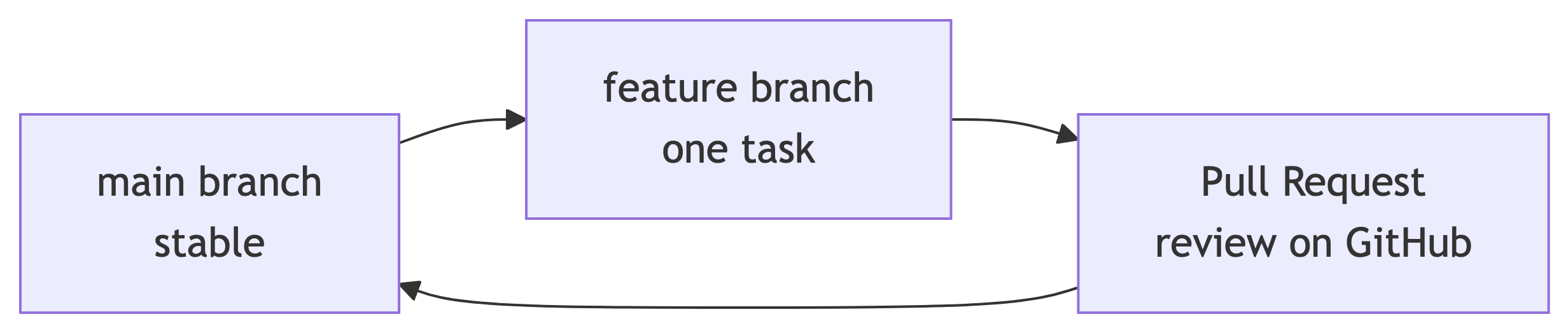
Solo students: optional. Working directly on main with frequent commits is acceptable.
When PRs Help
- Team of 3 with overlapping code areas
- You want a peer PO or teammate to approve before merging risky pipeline changes
- You are experimenting and might throw the branch away
Minimum bar for the course: visible commits on main (or merged PRs) before milestones. Empty repos on due dates hurt everyone.
Part 8: Milestones and Habits
Milestones on GitHub
deliverables/ and Git
Each milestone folder should contain:
- PDF required for Canvas-style grading paths
- Source when you use Quarto (
.qmd,refs.bib, figures) - Short
README.mdin the folder (optional but kind): status, date submitted, known gaps
Commit both source and rendered PDF when using Quarto so peer POs can open HTML/PDF without rendering.
Commit Often (Seriously)
| Bad habit | Better habit |
|---|---|
| One 200-file commit Sunday night | Daily commits per task or PBI |
| “It works locally” but never pushed | Push at end of each work session |
| Email files to teammates | Push to GitHub; link in Discord |
If your laptop dies, unpushed commits are gone. GitHub is the backup your team shares.
What I Look For
- Repo URL works;
LucasCordovaand peer POs have access - Commit history tells a story aligned with your Projects board
- Milestone PDFs exist in the right folders on due dates
- No secrets, no broken
.gitignoresurprises
Part 9: Final Exercise (Skeleton PDF)
Final Exercise
What You Will Do Tonight
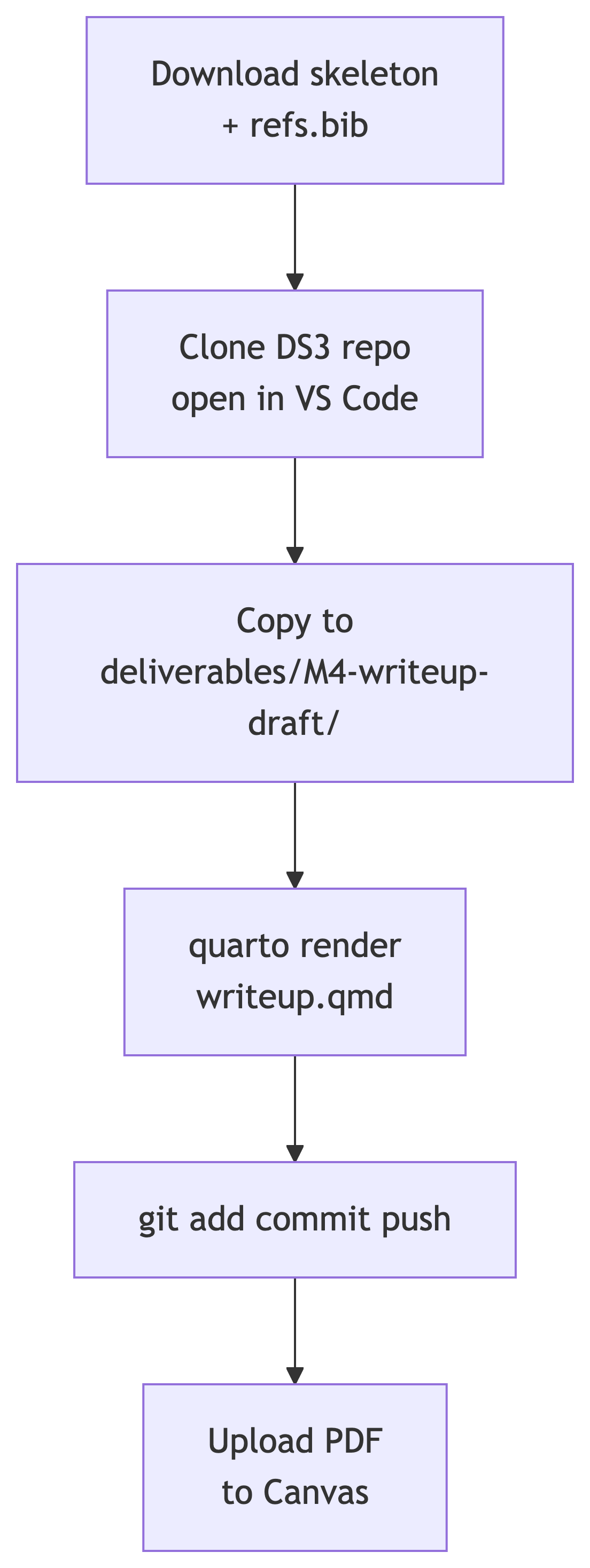
This is the hands-on we deferred from the Quarto lecture because many of you have not cloned your repo yet. You will:
- Get the write-up skeleton template files
- Clone (or open) your DS3 repo
- Render a PDF from the skeleton
- Commit and push source + PDF to GitHub
- Upload the PDF to the Canvas assignment for week 5
Step 1: Download Template Files
From the Block 1 Quarto lecture (course site):
- writeup-skeleton.qmd
- refs.bib (required for render; keep next to the
.qmd)
Save both to your laptop. You will copy them into your repo in Step 3.
Step 2: Clone Your DS3 Repo
If you already have the repo locally, open that folder in VS Code and run git pull. Otherwise:
Create the repo from the DS3 template on GitHub first if you have not already.
Step 3: Copy Into deliverables/M4-writeup-draft/
Adjust paths to where you saved the downloads. Rename the skeleton to writeup.qmd so the output PDF is writeup.pdf.
Optional tonight: paste a sentence or two from your M1 proposal into the Introduction stub. Empty stubs are fine for this exercise; I am checking that render + Git + Canvas work.
Step 4: Render PDF
From your repo root in the VS Code terminal:
Or Command Palette: Quarto: Render with writeup.qmd open.
Success: deliverables/M4-writeup-draft/writeup.pdf exists and opens. If PDF fails, run quarto install tinytex once, then try again. HTML output is a bonus; Canvas wants the PDF.
Step 5: Commit and Push
Commit source and PDF so peer POs and I can open artifacts without re-rendering.
Step 6: Upload PDF to Canvas
Open the Week 5: Write-Up Skeleton PDF assignment on Canvas. Upload writeup.pdf from deliverables/M4-writeup-draft/.
Solo: you submit your own PDF.
Team: one person uploads for the team; list every member in the Canvas comment or text box as the assignment instructs.
Wrap-Up
Before You Leave
Tonight’s Checklist
Block 2 continues with data engineering consultations after this exercise. Use Git between conversations, not instead of talking to your team.
Quick Reference Card
Questions: Discord #general or #blockers, or grab me in studio.
References
References
- Chacon, S., & Straub, B. Pro Git (free online). https://git-scm.com/book/en/v2
- GitHub Docs. Set up Git. https://docs.github.com/en/get-started/git-basics/set-up-git
- GitHub Docs. Resolving a merge conflict. https://docs.github.com/en/pull-requests/collaborating-with-pull-requests/addressing-merge-conflicts
- Cordova, L. P. DATA 510 DS3 template. https://github.com/LucasCordova/ds3template
- Cordova, L. P. Week 5 Quarto lecture. https://courses.lpcordova.phd/data510/lectures/05-1-techwriting-quarto/